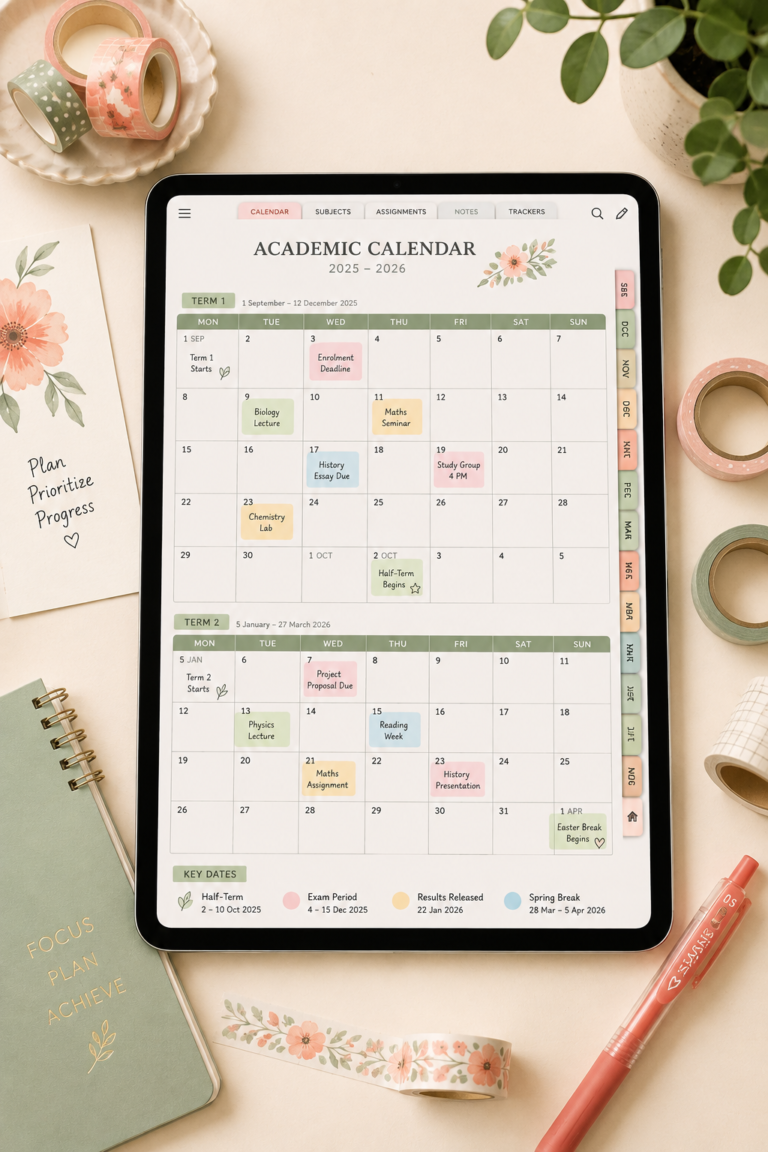
Ready to start your digital planning journey? Digital planning combines the satisfaction of traditional paper planning with the convenience of modern technology. Let’s walk through everything you need to know to get started.
What Is Digital Planning?
Digital planning takes everything you love about paper planning and brings it to your tablet or iPad. Think of it as your traditional planner, but with added features like unlimited pages, easy editing, and the ability to keep everything in one place without the bulk.

Not sure if digital planning is right for you? Check out our detailed comparison of Digital Planners vs. Paper Planners to help you decide.

Crafting Her Plans
Ready to plan it all out? We’ve got you.
Head over to the shop for printable planners and journals you can download and start using today.
Browse the shop →Why Switch to Digital?
Making the switch to digital planning comes with some exciting perks. You’ll never run out of pages or need to buy a new planner when the year ends. Plus, you can easily fix mistakes without white-out or crossing things out.
Digital planning also lets you:
- Keep all your planning supplies in one device – no more carrying multiple notebooks
- Search through your notes instantly
- Back up your plans so you never lose them
- Add photos, web links, and digital stickers to your pages
- Change colors and fonts without buying new supplies
Essential Tools You’ll Need
Getting started with digital planning is simpler than you might think. At its most basic, you’ll need a tablet (like an iPad) and a stylus. For the best experience, look for a tablet that supports pressure-sensitive writing.
Want specific recommendations? We’ve put together a guide on the 5 Best Digital Planners for iPad to help you choose the right tools.
Choosing Your First Digital Planner
Your digital planner should match your planning style. Some people prefer daily pages for detailed scheduling, while others like weekly or monthly views for bigger-picture planning. Think about how you naturally plan your time.
Not sure which format fits your needs? Our guide on Finding Your Perfect Planner walks you through the pros and cons of each layout style.
Getting Started With Your Digital Planner
The first week with your digital planner is all about building comfort with the basics. Start by exploring your planner’s navigation system. Most digital planners use tabs along the side or top, just like physical dividers in a paper planner. Tap these tabs to move between different sections quickly.
Take time to practice these essential skills:
- Basic gestures: Learn to zoom in for detailed work and zoom out for the full view
- Writing tools: Test different pens, highlighters, and pencils to find your favorites
- Erasing methods: Try both pixel and object erasers to understand when to use each
- Hyperlink navigation: Click the monthly tabs, weekly links, and section shortcuts
- Adding elements: Practice inserting text boxes, images, and digital stickers
Set up your dashboard first – this is your planner’s command center. Our guide on Planner Dashboard Layouts shows you how to create a hub that displays your most important information at a glance.
Start with just your calendar pages and daily tasks. Get comfortable updating these daily before adding more sections. This builds confidence with the basic tools while establishing a consistent planning routine.

Making It Your Own
Digital planning shines when it comes to personalization. Unlike paper planners, you can modify your digital planner anytime without starting over. Start with these customization options:
- Color coding: Create a system using different colors for work, personal, and family commitments
- Custom sections: Add pages for specific projects, goals, or areas of your life
- Digital decoration: Use stickers, washi tape, and borders to make pages visually appealing
- Font combinations: Mix typography styles for headers and regular text
- Page templates: Save frequently used layouts as templates for quick access
Take advantage of digital features that aren’t possible with paper:
- Add voice memos for detailed notes or reminders
- Insert links to important websites, documents, or emails
- Use copy-and-paste to duplicate successful layouts
- Create expandable sections for projects that need more space
- Add photo galleries for visual planning or memory keeping
Our post on How to Customize Your Planner dives deeper into these options and more. Remember to save your favorite customized pages as templates – this saves time when creating new spreads.
Consider adding special trackers that match your goals. Whether you’re tracking habits, mood, water intake, or exercise, digital planners make it easy to copy and adjust trackers as needed. You can even use different colors or symbols to make tracking more intuitive.
Tips for Success
Success with digital planning comes down to creating habits that work for you. Set aside regular time to plan, whether it’s daily, weekly, or monthly. Keep your planning system simple at first – you can always add more complexity as you get comfortable.
Here are some proven strategies:
- Review your planner at the same time each day
- Start with essential sections before adding extras
- Back up your planner regularly
- Use folders or tabs to organize different areas of your life
- Keep frequently used pages easily accessible
Next Steps
As you get more comfortable with digital planning, you’ll discover new ways to enhance your system. Try adding different types of lists, trackers, or collections. Our guide on Ideas for Lists to Put in Your Planner can help you expand your planning toolkit.
Remember, digital planning is a journey. Take time to explore what works for you, and don’t be afraid to adjust your system as your needs change. The perfect planning system is the one that helps you stay organized and accomplish your goals.
Ready to dive deeper into digital planning? Check out our other digital planning guides and tutorials to keep learning and growing your skills.