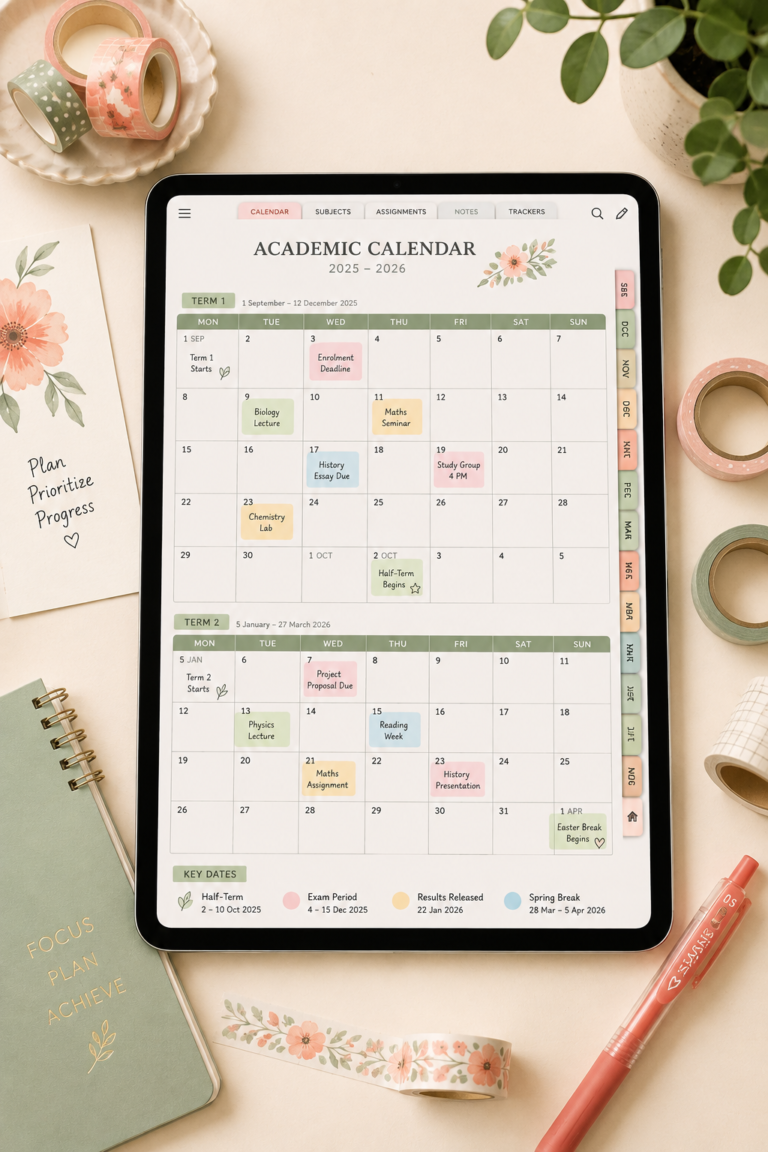
Are you looking for a digital planner for your iPad? If so, you’re in luck! In this blog post, we will discuss the five best digital planners for iPads. We’ll go over how they work and what you need to get started. So, whether you’re looking for a planner to help manage your personal life or your business life, we have the perfect option for you!
Best digital planners for an iPad
1. The Planners Collective Ultimate Digital Planner
The Planners Collective’s 2022 planner is one of our favourites, since it works with iOS, Android, and Microsoft devices as well as tablets, smartphones, laptops, and desktop computers. The four-year dated planner has four layouts to choose from, including an index and daily, weekly, monthly, and yearly pages.
The bonus features are plentiful, including cover pages with 15 designs (there are also ten styles), numerous templates for lists, tracking, and note-taking; A gratitude journal, an emergency contacts page, a vision board, meal planners, and trackers for bills, expenses, bills, fitness and wellness, passwords, sleep, moods are just a few examples. The planner includes over 650 digital stickers and “sticky” notes for individuals who enjoy adding colourful pictures to their planners.

Crafting Her Plans
Ready to plan it all out? We’ve got you.
Head over to the shop for printable planners and journals you can download and start using today.
Browse the shop →2. My Daily Planners 2022 Digital Planner
This 2022 portrait planner, which is available for iPads (including Pro) and Mac computers, has a simple, professional-looking style with daily, weekly, monthly, and yearly pages as well as an index. (It’s also available in landscape orientation.) Daily pages give you space to plan your day from 6 a.m. until midnight, as well as room to jot down the day’s priorities, to-do lists, and other notes.
You’ll have the chance to list your goals and notes, as well as sections for objectives and notes, on a weekly basis. You may use Sunday or Monday as the starting day of your week. You’ll also receive pages for budgeting, project planning, and meeting notes, in addition to six project file organizers to personalize it even further. It works with GoodNotes, Notability, Noteshelf, and other iOS PDF annotation programs.
3. Evo Printables Fitness Digital Planner
This digital planner helps you keep track of your workouts, fitness goals, meal plans, and more. GoodNotes, Notability, Noteshelf, and Xodo are all compatible with it. Evo Printables’ library of over 500 planner templates and more digital planning templates is accessible as well.
This digital fitness planner has an index, a 12-week workout plan, daily and weekly planning pages for workouts and meals, as well as trackers for weight and wellness. You can also save your favourite recipes to your organizer and add notes on the dotted, line, and graph pages.
4. The Daily Planners Undated Business Planner
This digital business planner is best used on GoodNotes, which may be used on both iOS and Mac computers. It contains an index, undated daily, weekly, and monthly planning pages as well as forms for tracking finances (such as sales, budgeting, taxes, costs, and inventory), invoicing, order forms, and other small business resources.
The Pro notebook’s staple features include a to-do list, goal and project planners, office organizers, social media content and tracking guides, as well as blank note pages.
5. Amethyst and Garnet Ultimate Student Planner
This student planner gets an ‘A’ in Organization 101 since to grade and homework trackers, subject and chapter reviews, essay planners, and class lists. It has daily, weekly (in three different layouts), monthly, and yearly planning pages, as well as goal-setting materials on a daily basis. It also has a school-life balance, so it comes with helpful trackers for chores, hydration, sleep, debt monitoring, fitness, and reading, as well as 30-day challenges and birthday reminders.
400 digital stickers, recipe pages, a food diary, and a vitamins and supplements log are included as well. It’s best suited for use with the Notability or GoodNotes iPad apps.
What do I need to use a digital planner?
Planner planners are created particularly to assist you in organizing and planning your life.
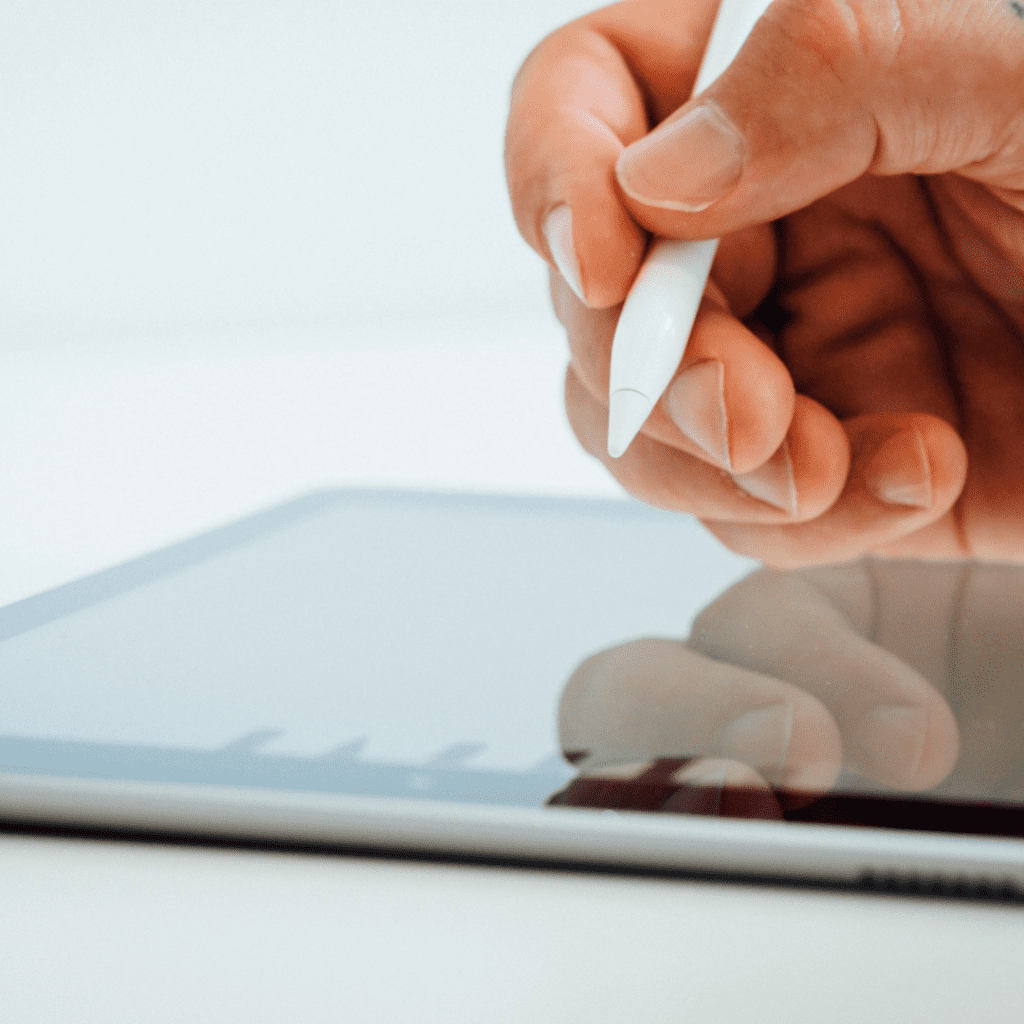
To do so, you’ll need to communicate with your planner on a regular (read: daily) basis using tools that are acceptable to you. This will include a digital tablet, a stylus, and a notetaking app that feels natural to use.
A basic setup will look like this:
- iPad
- Apple Pencil 2 Pencil grips (for longer planning sessions)
- Notetaking app ( Goodnotes, Notability, Noteshelf)
Notetaking apps: The GoodNotes app is most popular among digital planner creators since it’s simple to use and allows you to insert fun stickers, but any app that may import and annotate PDFs will do.
Digital planner vs paper planner: Which one is better?
Paper planners have been around for a long time and have both advantages and drawbacks when compared to digital planners.
Paper planners are tangible items. They’re another item to bring with you, and like many other physical items, they can only do one thing and are difficult to modify. Planners are also generally dated based on the year, and they must be replaced when their coverage periods have come to an end.
Digital planners, on the other hand, are much more adaptable. They may be customized by duplicating pages, adding stickers, or importing templates. The majority of digital planners are also undated, so you won’t have to purchase a new one each year unless you want to. Simply duplicate the original file and use it again next year.
So, what are the downsides of going digital?
It may be difficult to enter the market, especially when compared to paper planners. A digital tablet, such as an iPad or Android device, and a stylus are required.
There are so many other things you can do with an iPad that this expense is outweighed by all of the extra uses your tablet may have. However, if the only reason you want to purchase an iPad is that it allows you to go digital, the cost of doing so may appear exorbitant in comparison.
How do I get started using digital planners?
You’ll need to acquire and download the planner, then import it into your notetaking software of choice after that.
The way you import will differ from one app to the next, but clicking the Share & Export buttons on your iPad or Android tablet is usually how it’s done.
Depending on the planner you choose, there may be additional procedures to follow. Some planners come with a slew of different layout alternatives, so you’ll need to pick one that works for you.
If your planner has any extra materials or formats available, most of the time, you’ll receive instructions for how to access them when you buy it.
How does navigation work with PDF planners?
A digital planner is essentially a large PDF file that has been linked together with hyperlinks. When you use your planner, you’ll navigate using the links.
When you import your planner to a notetaking program, some of your connections may initially be broken.
If you find that your situation has deteriorated, don’t be alarmed!
Most notetaking apps include two distinct modes: an “edit” mode and a “read-only” mode.
Links are disabled in “edit” mode so you can make changes to your papers without clicking on a link and going to a different page.
You’ll have to go into the Settings menu and change your mode to “read-only.” This is generally accomplished by tapping a specific icon in the app toolbar. You won’t be able to create anything while in “read-only” mode, but you should be able to use the links to go wherever you want!
Switch to “edit” mode and start composing when you reach the page you wish to write on.
Going digital with your planner
Digital planners have many advantages over paper planners. They can be customized, are undated, and don’t need to be replaced every year as paper planners do. Additionally, digital planners take up very little space, are easy to transport, and can be used for a variety of purposes beyond just planning.
The only downside to digital planners is that you need an iPad or other digital tablet in order to use them. If you already own a digital tablet and want to start using a digital planner, we’ve provided instructions on how to get started.
You might also like Bullet Journal To Do Lists for All Your Everyday Tasks by Crafting Her Plans